Combat System (ComboGraph)
Echo Quest combat system implementation, covering ComboGraph selection rationale, light attack combos, collision detection, and ANS-based shape-sweep logic
This chapter explains why ComboGraph was selected, how the combo system is implemented, and how animation-notify-driven collision detection is handled.
2.1 Why Use ComboGraph?
Section titled “2.1 Why Use ComboGraph?”In this project, ComboGraph acts as the bridge between the presentation layer (animation/combo flow) and the logic layer (GAS). It integrates combo input, Input Buffering, and attack montage playback management, while also connecting to GAS to dispatch and execute core attack events such as damage, ability Cost, and Gameplay Cue feedback.
System composition:
| Component | Responsibility |
|---|---|
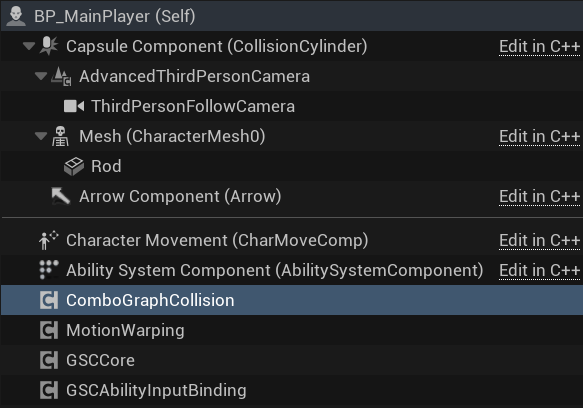
| ComboGraphCollision | Runtime collision detection logic. See section 2.2.2. |
| Primary ComboGraphAsset | Data asset defining combo nodes and flow. |
A lesson from a previous project: why use ComboGraph instead of hand-building combo logic in Blueprint?
| Dimension | Hand-built Blueprint | ComboGraph |
|---|---|---|
| Visualization | A large Switch on Int plus many If branches, creating tangled wires during branch design. | Tree-style node structure. Each node is an action, and each edge is a branch condition. |
| Input buffering | Requires high-precision Input Buffering, which is central to action-game feel and difficult to implement robustly in Blueprint. | Built-in InputBuffer records input during the current action and automatically chains into the next action. |
| Iteration | Requires disconnecting wires, rewiring, or even rewriting logic. | Data-driven. Nodes and edges can be edited directly in the editor. |
| Complex branching | Pause and hold detection become mixed into combo logic, eventually becoming hard to maintain. | Represented as different transition conditions on edges. |
2.2 Light Attack Combo: How ComboGraph Is Implemented in This Project
Section titled “2.2 Light Attack Combo: How ComboGraph Is Implemented in This Project”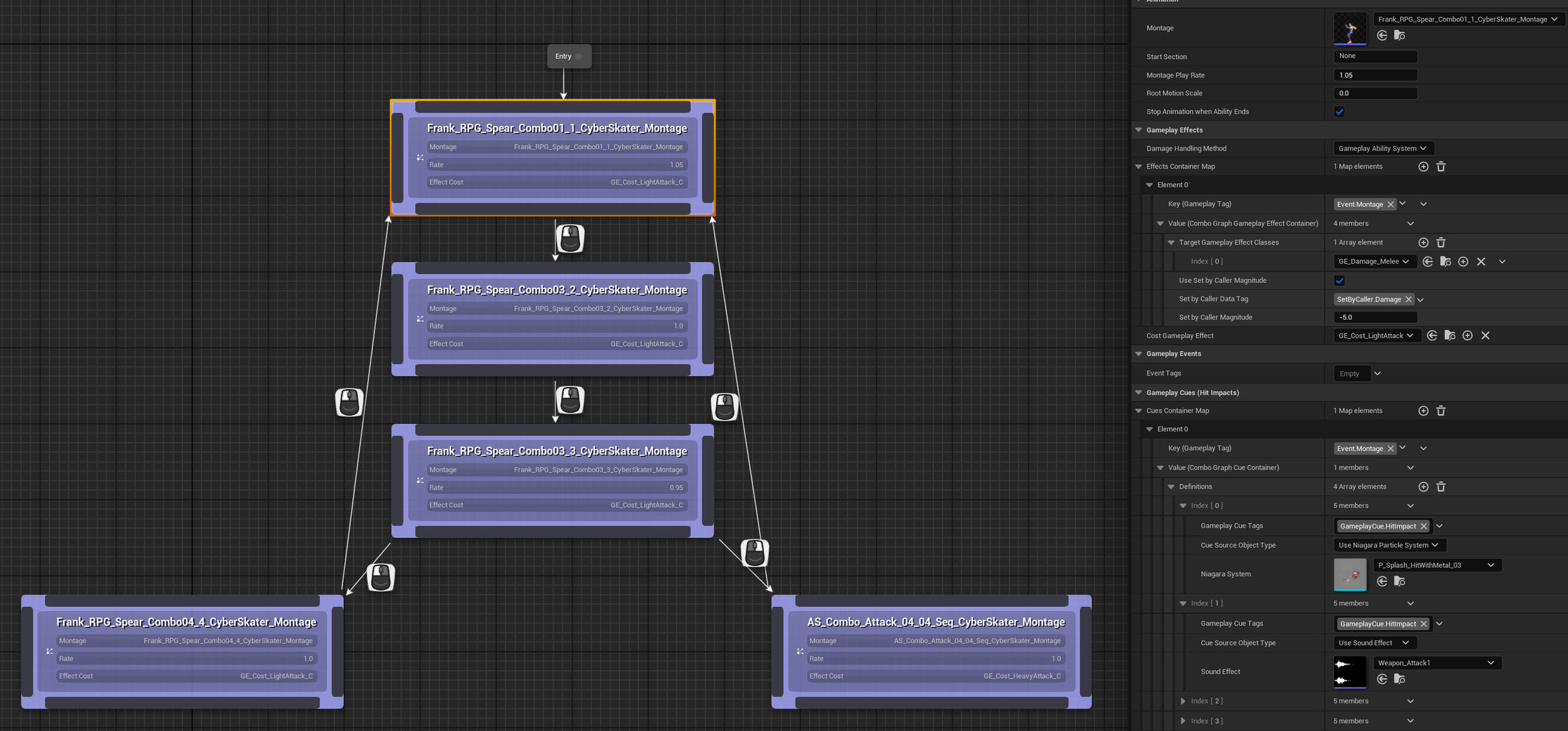
Left side of the node graph — combo logic: when the player presses the LightCombo input (left mouse button), PlayerBP executes this ComboGraph from Entry and plays the first montage. Edges represent the ordered montage transitions triggered by different inputs. The light attack combo has four stages, with the final stage supporting left/right mouse button conversion between light and heavy attacks.
Right side of the node graph — execution content (top to bottom):
| Track | Content |
|---|---|
| Animation | Plays the corresponding montage, including AN/ANS events inside the montage, and sets the play rate. |
| Gameplay Effects | Sends the Event.Montage Tag to OnHit objects, activates GE_Damage_Melee (damage -5.0), and triggers GE_Cost_LightAttack (stamina cost). |
| Gameplay Cues | Presentation-layer effects triggered by receiving the Event.Montage Tag, such as hit-location sound and particle effects. |
2.2.1 Animation Montage Configuration (AnimNotify)
Section titled “2.2.1 Animation Montage Configuration (AnimNotify)”AnimNotify is used to send signals or trigger logic at specific times during animation playback.
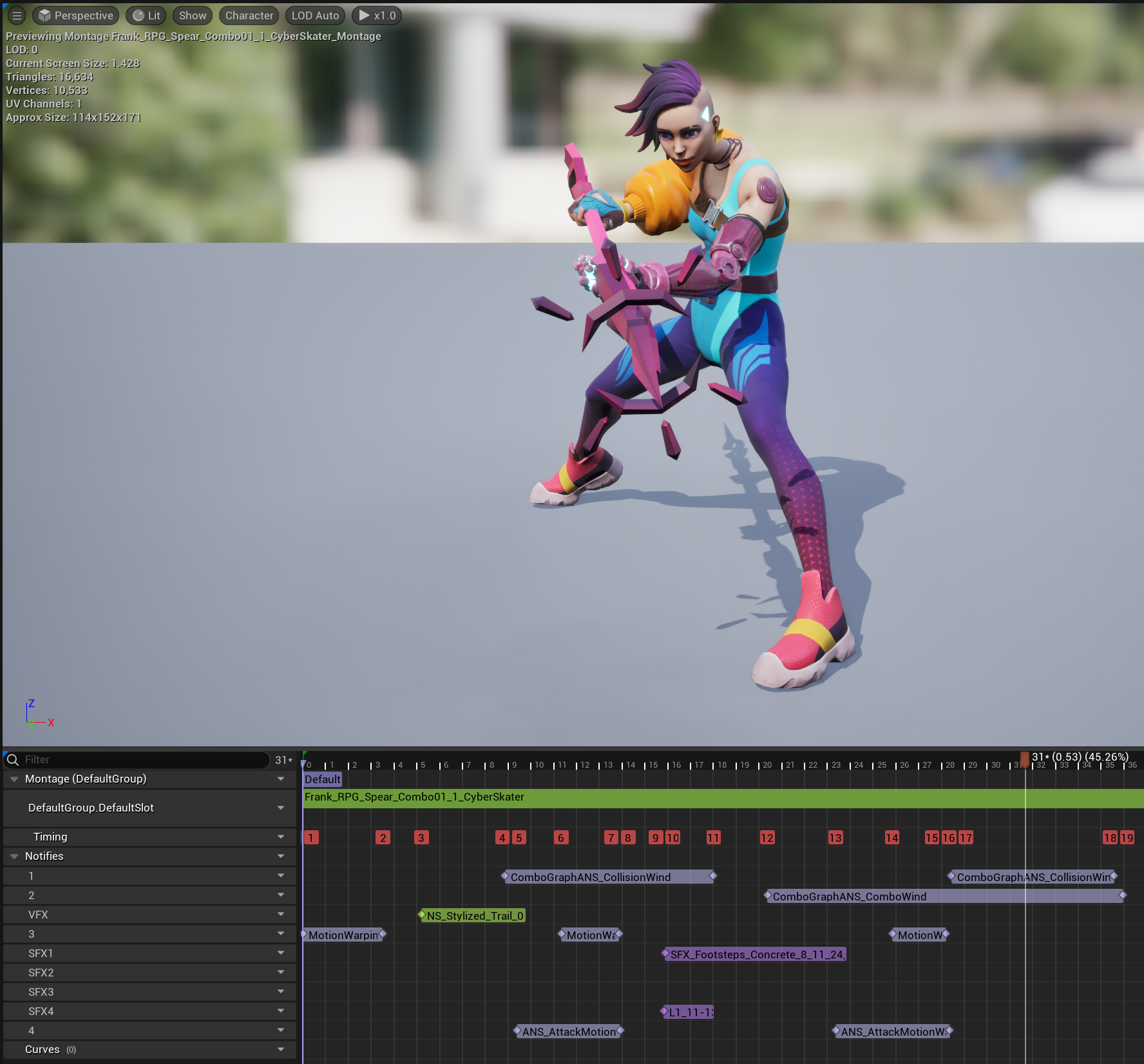
The current attack animation contains the following AnimNotify entries:
| Notify | Purpose |
|---|---|
| Motion Warping | Handles Motion Warping logic. See the Motion Warping chapter. |
| Collision Window | Attack collision detection. See sections 2.2.2 and 2.2.3. |
| Niagara VFX / Sound Effects | Weapon trail effects (Niagara VFX), footsteps, and attack SFX. |
2.2.2 Collision Detection: ComboGraphCollision
Section titled “2.2.2 Collision Detection: ComboGraphCollision”ComboGraphCollision is a component attached to the attacking Actor and acts as a collision manager. It solves two pain points that are difficult to handle with native UE collision events such as Overlap / Hit:
2.2.3 ANS-Based Shape Sweep
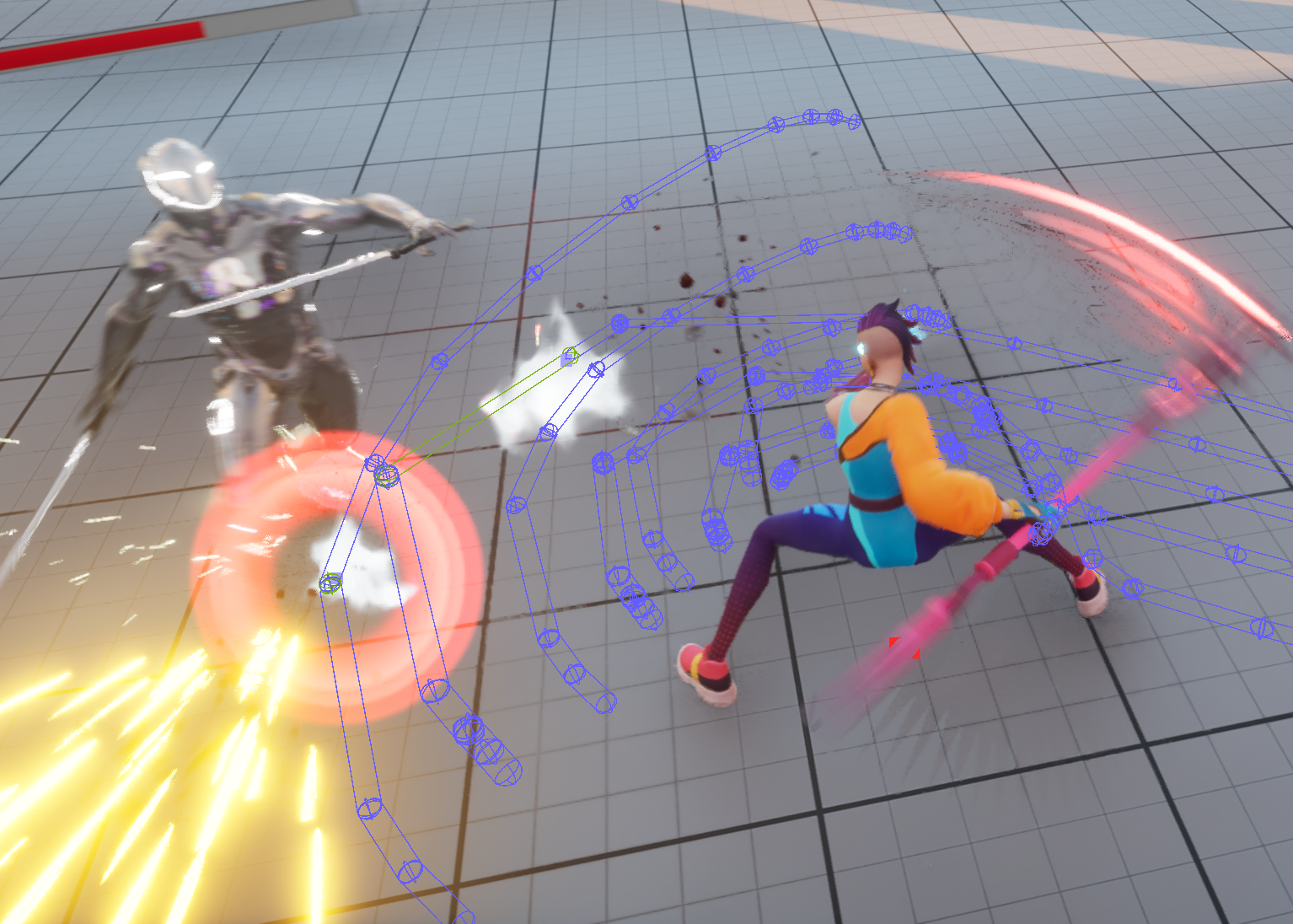
Section titled “2.2.3 ANS-Based Shape Sweep”-
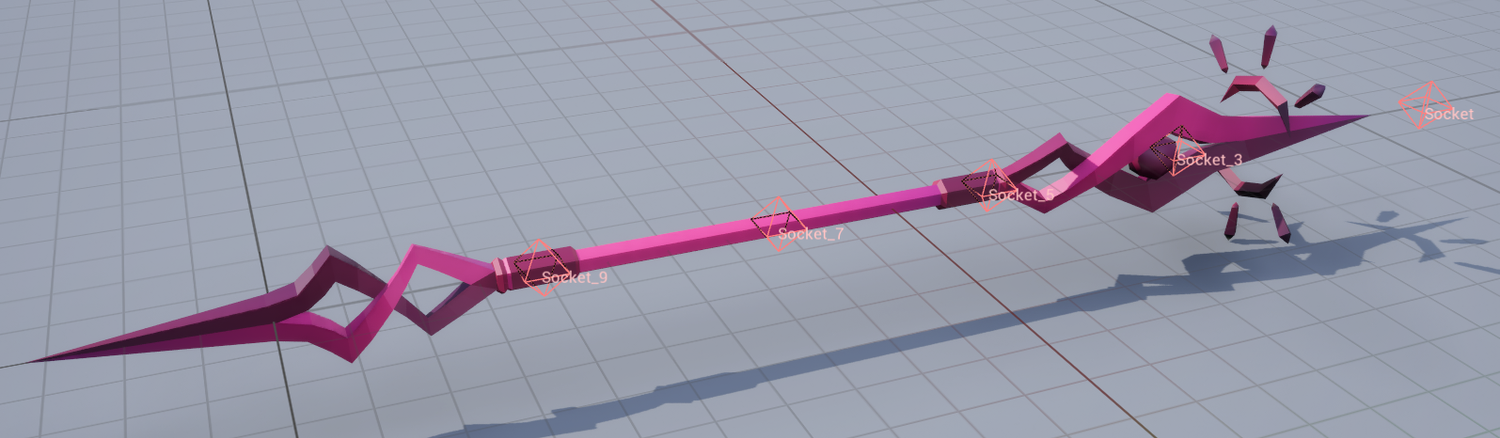
Static Mesh setup
Several Sockets are added to the weapon StaticMesh to define the position of each sweep point.
-
Animation setup
An AnimNotifyState (ANS), the Collision Window described above, is added to the keyframe track of the attack Animation Sequence / Montage. The start point (Notify Begin) is the frame where the attack begins to pose a threat, and the end point (Notify End) is the frame where the swing ends. Together they define the attack’s hit detection window.
-
Runtime logic
When animation playback reaches the start of the Collision Window ANS, the component begins working. Based on the difference between the Socket positions in the previous frame and the current frame, it performs shape sweeps supporting Line, Sphere, Box, or Capsule traces. This fills gaps between frames and creates a continuous, robust arc-shaped hit trajectory, significantly reducing tunneling and missed-hit issues at low frame rates.